Showing posts with label ZFS. Show all posts

Tuesday, 18 February 2014

Some Exalogic ZFS Appliance security tips and tricks

Introduction

The ZFS appliance that is internal to Exalogic has been configured specifically for the rack, however while it is "internal" there are still a number of configuration options that should be considered when setting up a machine for production usage.  This blog posting is not an exhaustive list of all the security settings that can be done for a ZFS appliance but does pick off some configuration values that should be thought about whenever the appliance is being setup for use.

User Security

Once an Exalogic rack has been installed by default there will be a single root user of the ZFS array defined.  It is likely that other roles may need to create and manage storage space for their specific accounts.  Handing out the root privileges to other users is not recommended.

The permissions are determined via a three layered system.
  • Authorizations
    • Configuration items have CRUD (Create, Read, Update, Delete) like actions that can be taken.  
  • Roles
    • Each role defines a number of authorizations that can be performed by a user with that role
  • User
    • Defines either a local or remote directory based user that is allowed to authenticate to the ZFS appliance, the roles and hence authorizations will determine which activities the user is able to perform.
In most situations that I have come across the ZFS appliance is administered by the rack administrator so all system level configuration can be performed by one user.  However, there is often a need to be able to provide delegated administration to either an individual share or to all shares in a project.

Consider a scenario where the vDC is to be setup with an account that will host all vServers for Application A, the application may require some shares created to host the binaries and configuration files.  The machine administrator can initially create a project, say called application_a.  Then the role for administrating the project can be created.  To do this click on Configuration --> Users and click on the + symbol beside the Roles to create a new role. 
Create role to administer shares for a specific project
For the authorizations select the scope to be that of the Projects and Shares, then chose the exalogic storage pool and the project that was created earlier.  In this scenario we select all authorizations for all shares so that the user can create multiple shares as needed, although all within the context of the project.  (Click on Add to add the Authorisations selected and then click on add to create the user.) It is possible to only allow specific actions on the project or limit the administration to a single share.

Having created the role we now need to create a user and allocate the role to that user.

Creating a user with restricted permissions


In the example shown above we create a local user that will only have the role to administer the Application A project as limited by the selection of the roles associated with the user. 

Should that user then attempt to make a change to anything other than their project/share the system will respond with the following message.

Error reported when the authorisation has not been granted.


Project/Share Security

Having defined a user with limited access to the ZFS device we now turn our attention to the configuration that provides a level of security to help prevent malicious attacks on an NFS mounted share.  Most of the configuration settings for a share can also be set at the project level, as such we will discuss these first and remember that if necessary the inheritance can be overridden to give an individual share a unique configuration.

  • General
    • Space Usage
      • The quota can be used to prevent any shares in this project from exceeding a set size.  Handy to set to ensure that this project does not use all the available disk space on the device.
    • Mountpoint
      • Not strictly a security feature but it is good practice to always ensure that the project has a unique mountpoint defined.  By default a share will append the share name onto the project's mountpoint to determine the location in the ZFS appliances directory structure the data for the share.  A format that we use is to have all shares given a mount point of /export/<project name>/<share name>
    • Read Only
      • Obviously not possible in many cases but certainly at the share level you may wish to have the share setup as Read/Write initially and then change it to be read only so that users cannot accidentally delete the data on it.  (For example a binaries only filesystem.) During upgrades it could be switched back to read/write for the duration of the patching.
    • Filesystems - LUNS
      • Not directly applicable for Exalogic today but certification to use the iSCSI facility of the ZFS appliance is underway.  At which point then setting the user, group and permissions for LUNs created will be required.
  • Protocols
    • NFS 
      • Share Mode
        • Set to None so that by default a client cannot mount the filesystem unless they have specifically been given permission as an exception
      • Disable setuid/setgid file creation
      • Prevent clients from mounting subdirectories
        • Obviously security related but it will be up to the individual usecase to determine appropriate usage.
      • NFS Exceptions
        • Having set the share mode to None the usage of NFS Exceptions to allow clients to mount the share is mandatory. There are three mechanisms available to restrict access to a particular host or set of hosts.  Restricting by Host with a fully qualified domain name, by DNS domain or by network. 
          In general I have found the restriction by network to be the most useful but that is partly because DNS domains are often not used when setting up for short term tests.  When using the Network Type specify the "entity" to be a network using the CIDR notion.  So for example, I might want to restrict the share to only vServers in the network range 172.17.1.1 through to 172.17.1.14 in which case the entity should be set to 172.17.1.1/28.  The netmask can be taken down to an individual IP address /32 if only one vServer is allowed to mount the share.
          The access mode set to read/write or read only as is needed for the share usage.
          Root Access indicates if the root user on a client machine would have the root access to files on the share.  In general NFS terminology this is known as root squash.
Example NFS setup

    • HTTP, FTP & SFTP
      • Leave with share mode of None unless there is a specific need to allow these protocols to access data held on the share.
  • Access
    • This is a tab that has specific information for a share (other than the ACL Behaviour) so should be set independently for each share.  The Root Directory Access specifies the user/group and the file permissions that will be applied to the share when mounted on the client machine.  If using NFSv4 and hence some sort of shared user repository then the user and group are validated against this store, otherwise you can use values such as nobody:nobody to specify the user:group or enter the UID/GID of the users.  These IDs must map onto a user:group ID in the client machine.   The directory permissions set according to the needs of the application.
    • ACL
      • Very fine grained access to files and directories is managed via Access Control Lists (ACLs) which describe the permissions granted to specific users or groups.  More detail available from Wikipedia or in the NFSv4 specification (page 50) that is supported by the ZFS appliance.  In general I have found the default settings have been enough for my needs where the world can read the ACLs but only the owner has permission to change/delete them.

Administration Security

The ZFS appliance has many configuration settings  however to lock down the appliance it is possible to turn off a number of the services or re-configure them from the default to minimise risk of intrusion.
  • Data Services
    • NFS
    • iSCSI - If not used then disable the service.  (As of Exalogic 2.0.6.1.0 iSCSI is only supported for the Solaris Operating System.  In future releases it will also be supported for Linux/virtualised racks.)
    • SMB, FTP, HTTP, NDMP, SFTP, TFTP can all be disabled unless specifically needed for some function.  (For example, I quite often use the HTTP service to allow easy access to some media files or to host a yum server.)
  • Directory Services
    • Generally use either NIS, LDAP or Active Directory for a shared identity store.  Turn off the services you are not using.
  • System Settings
    • Most of the system settings are useful to have enabled on the rack.  The default settings of having Phone home and Syslog disabled are the best bet.
  • Remote Access
    •  SSH is almost certain to be required to administer the device via the CLI and using scripted configurations.  However if you setup another user with all necessary permissions then it is possible to change "Permit root login" to deselect this option.  This means that it will no longer be possible to use the root account to ssh onto the rack.  NOTE - If using exaBR, exaPatch, exaChk etc. then these rely on ssh access as root so the flag would need to be toggled back prior to running these tools.
 By default the appliance can be administered on all networks.  This can be tightened up so that administration can only occur over the specific management networks.  To disable administration on a particular interface select the Configuration --> Network --> Configuration tab and then highlight the Interface that you want to disable and click the edit icon to change the properties and deselect the Allow Administration option.

Preventing administration on a particular interface
It is possible to prevent administration on all the networks but the recommendation is to simply prevent it from the networks that a guest vServer can join.  Namely the IPoIB-vserver-shared-storage and the IPoIB-default.  These interfaces can be identified by the IP addresses or partition keys in the description shown in the browser interface.  The IPoIB-default network belonging to "via pffff_ibp1, pffff_ibp0" and the storage network will normally have an ip address in the 172.17.n.n network and be on partition 8005.  (via p8005_ibp1, p8005_ibp0) The partition for the shared storage may vary as it is configurable as part of the Exalogic Configuration Utility on the initial installation.

The effect of deselecting "Allow Administration" on the interface means that a browser will see an "Unable to connect" error and if the ssh interface is used then the following message is shown.

# ssh donald@172.17.0.9Password:
Password:
Last login: Tue Feb 18 11:51:00 2014 from 138.3.48.238
You cannot administer the appliance via this IP address.
Connection to 172.17.0.9 closed.

Summary

In conclusion, there are actually relatively few actions to be taken from the default settings of an Exalogic ZFS appliance but the following should always be considered:-
  1. Setup users to administer the projects and shares that are limited to only have write access to the shares they need.
  2. For each share make certain that only the protocols that are needed are allowed access (normally NFS only, and potentially iSCSI in the future) and ensure that only specific hosts are allowed to mount the shares
  3. Prevent administration on the networks that are connected to guest vServers.


Tuesday, 27 November 2012

Backup and Recovery of an Exalogic vServer via rsync

Introduction

On Exalogic a vServer will consist of a number of resources from the underlying machine. These resources include compute power, networking and storage. In order to recover a vServer from a failure in the underlying rack all of these components have to be thoughts about. This article only discusses the backup and recovery strategies that apply to the storage system of a vServer.

There are three general approaches that can be applied to the backup and restore process of a vServer. These being:-
  1. Use the ZFS storage capabilities to backup and restore the entire disk images.
  2. Use a backup mechanism, such as rsync, to copy data from the root disks of the vServer to a backup storage device.
  3. Template the existing vServer on a regular basis and use this template to create a new vServer to restore.

Backup using ZFS appliance to backup full disks

This approach essentially makes use of the ZFS appliance to create a backup of the entirety of the ExalogicRepo share and taking a copy of the full disk images. The restore is then done via a process of recovering the root disks and any additional volumes for a vServer and replacing the existing images. As a process it is fairly simple to implement but has some limitations, for example it does not enable the migration from one rack to another, or even the moving to a different physical host within a rack is involved. Similarly restoring individual files or filesystems would mandate starting up the backup copying the files off, shutting it down and reverting to the original and copying the file in.
To be certain of not having a corrupted backup it would also be necessary to ensure that the vServer being backed up is not running at the time that the backup/snapshot is taken.

Backup using backup technology from the vServer - rsync

Introduction

This approach makes use of a backup capability within the Linux environment of the vServer itself. Very much a "standard" approach in the historical physical world where a backup agent is installed into an operating system, this agent backups all the files to a media server. There are many products that provide these services from all the main backup vendors. In this example we will consider using the linux command rsync to provide the capability to backup to the ZFS appliance.

Backup using rsync & ZFS Appliance snapshot capability

The backup process incorporates configuring both the ZFS appliance and the vServer that is being backed up. The process to follow is
  1. Create backup share and configure it to regularly snapshot
  2. Mount backup share on vServer (Using NFS v3)
  3. Issue the rsync command to backup full server on a regular basis. (cron)

Create Backup share

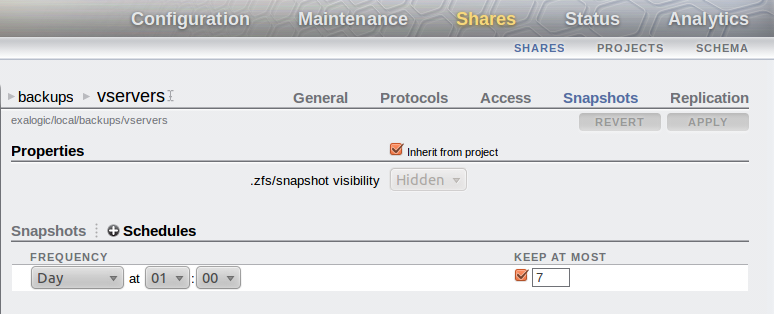
The first activity is to create a project/share to hold the backups of the vServers. Once the filesystem has been created then ensure that you setup the system to automatically create regular snapshots of the share. In the graphic below the share has been setup to snapshot the system daily at 1am and to keep 1 week's worth of snapshots on the storage appliance.


You should also setup replication to push the backups to a remote location for safekeeping. This is a simple activity of setting up a replication target under the Configuration/Services/Remote Replication tab then for the share (or at a project level) define the replication settings.
Make sure the share has root squash enabled. (root access in an NFS exception)

Mount the share on the vServer

It is now possible to mount the share on the vServer. This can be done dynamically at the point in time when the backup is performed or via a permanently mounted share.
It is necessary to mount the share using NFS v3. This is because there are a number of specialist users that will be setup on the vServer with ownership of certain filesystems. (eg. the ldap user) Because NFS v4 has a user based security check then these files may fail to backup successfully so NFS v3 is a better bet.

If using a permanent mount point defined in /etc/fstab then there should be a line similar to that shown below.
...
<IP/Host of storage appliance>:/export/backups/vservers /u02/backups nfs rw,bg,hard,nointr,rsize=131072,wsize=131072,tcp,vers=3 0 0
...

However general advise would be to mount the share specifically for the backup then umount it so that under normal usage of the vServer the backup is not visible to users of the system. This is the mechanism that the linked script uses.

On an Exalogic the initial backup of a simple vServer that has nothing but a deployment of WebLogic took just over 6 minutes for the first backup. Subsequent backups make use of the intelligence built into rsync to only copy changes to the backup version, thus following copies were completed in ~30 seconds. Obviously if there had been a lot of changes to the files then this number would increase towards the original 6 minutes.

vServer configuration for backing up

rsync is a fairly simple command to use, however the setup required to ensure it is configured to copy the correct files to an appropriate remote location is more complex. The basic command to use is shown below with the restore being a reversal of the command.

# rsync -avr --delete --delete-excluded --exclude-from=<List of files to exclude> <Backup from> <backup to>

However to simplify the setup I have created a short script that makes use of the Exalogic ZFS appliance and excludes files appropriate for the Oracle Linux base image. The script I used can be found here and its usage is shown below
donald@esat-df-001 :~/consulting/oracle/exalogic/bin/backup/rsync$ ./rsync_backup-v1.0.sh -help
rsync_otd_backup.sh 
-action=(backup|restore) : [backup]
-nfs_server=<IP of NFS storage device> : [nfs-server]
-nfs_share_dir=<Directory of NFS share> : [/export/backups/vservers]
-mount_point=<Directory of mount point on local machine> : [/mnt/backups]
-backup_dir=<root directory for backups under the mount point> : [esat-df-001]
-directory_to_backup=<Source directory for backing up.> : [/]
-automount
-script

If automount is not specified the system will assume that the mount point defined already exists
-script is used to indicate that the script is run automatically and should not prompt the user
for any input.

Each parameter can be defined from the command line to determine the configuration, however if called automatically (from cron for example) you must include the -script option, otherwise it will prompt for confirmation that the configuration is correct.  The defaults are all setup within the script itself, inside the setup_default_values function at the top, these should be changed to suit your environment.  Similarly the function create_exclusion_list contains a list of files/directories that will not be backedup/restored.  Primarily because these directories are specific to devices attaches, temporary or cache files. The list here is what I have found works using Oracle Linux 5.6 but will need to be reviewed for your environment.
To perform the backup the simplest approach is to setup cron to run the job. I was using a backup run hourly, with the ZFS appliance keeping a copy on a daily basis but the specific needs for backup frequency will vary from environment to environment. An example of the crontab file used is shown below.
[root@esat-df-001 ~]# crontab -l
10 * * * * ./rsync_backup.sh -action=backup -script -nfs_server=172.17.0.17 -nfs_share_dir=/export/backups/vservers -mount_point=/mnt/backups -backup_dir=esat-df-001 -directory_to_backup=/
[root@esat-df-001 ~]#


Restore using rsync

The restore process is approximately a reverse of the backup process however there are various options that make this approach flexible. These being:-
  1. The ability to restore individual files or filesystems to the vServer
  2. A complete restore from backup of vServer
  3. The recreation of a vServer on another host/rack, restoring to the values defined in the backup.
These options can all be fulfilled by the use of rsync with varying degrees of manual intervention or different restore commands.

Recreating a vServer and restoring from backup

Should a vServer become corrupt or deleted (deliberately or accidentally) then it may be necessary to recreate the vServer from a backup. Assuming that the vServer is to have at least its public IP address identical to the previous server then the first activity is to allocate the same IP address to the new vServer that is will be created. This is done by simply allocating the IP address and then during the vServer creation process defining the network to have a static IP address.


Ensure that the vServer you create has a similar disk partitioning structure to the original. Perfectly OK for the partitioning to be done differently but it will be necessary to make changes to the backed up /etc/fstab file to match the new vServer layout and to perform the file system creation and same mount points.
Thus the activities to perform/consider on creation are:-
  1. Ensure the disk size/additional volumes are created as needed.
  2. Allocate IP address for any IPs that are to be recreated in the new vServer. Statically assign them to the vServer during creation.
  3. After first boot
    1. Format and mount volumes/additional disk space as needed.
    2. For all the NFS mounts that were on the previous vServer re-create the mount points. (All defined in the backup copy of /etc/fstab)
    3. Ensure disk partitions/volumes are mounted such that the vServer has similar storage facilities to the original.
  4. Restore from backup.
  5. Edit files to correct for new environment
    1. Edit /etc/hosts to make changes as necessary to any IP addresses appropriate to new vServer/environment
    2. Check the /etc/fstab file to correct according to new partitioning/volumes attached if changed from original
  6. Reboot & test
Point 4 is where the rsync command is run to create a backup, if you are wanting to backup to one of the earlier snapshots then make sure that you use the ZFS appliance to create a new share from one of the snapshots and then use that share to mount the backup and copy the files onto the new vServer.

Backup by Templating an existing vServer (A later blog post....)