Wednesday, 27 February 2013

Starting/Restarting the Exalogic Control Stack

Introduction

The installation process for a virtualised Exalogic will install a number of vServers that run the Exalogic Control cloud management stack.  Once installed this will generally be left up and running so that the virtual data centre can be administered.  However at times it may be necessary to stop/restart the control stack.  For example, if you want to backup the control vServers the simplest mechanism is to stop the instances and use the snapshot capability of the ZFS storage appliance.

This blog post provides some instructions on how to shutdown/restart the control stack.  This relates to the Exalogic 2.0.1 and 2.0.4 releases.  For the 2.0.6 release see the comments for this posting.  The same principles apply but the services are simpler to use or the lifecycle tool exaBR can be used to shutdown the control stack.  (exabr -r <repository path> stop control-stack )

Shutdown/Startup of Exalogic Control Software Stack

Exalogic Control consists of a number of different applications deployed to multiple vServers.
  • Enterprise Manager Ops Center (EMOC)
    • The main interface used for Exalogic Control to manage the Rack and Virtual Data centre.
  • Ops Center Proxy Controller
    • There are two proxy servers deployed.  Requests to manage the environment are sent from the EMOC server to one or other proxy server which issues the commands.  The Proxy servers are part of the architecture that enables Ops Centre to manage complex network topologies where the central EMOC server is not in the same network as  the servers that it manages or to allow requests to be load balanced between multiple proxies.
    • For Exalogic there are two proxies because some of the commands are issued to the compute node ILOMs.  A compute node cannot manage its own ILOM so it is necessary to have the two proxies deployed so that all compute nodes can be fully managed.
  • Oracle VM Manager (OVMM)
    • Used by EMOC to manage the virtual environment.
  • Oracle Database
    • Both EMOC and OVMM have a need for an underlying database to store configuration and state management into.
The software on these servers can be started and stopped independently of the vServer itself.  Each application has a slightly different start and stop command as shown below:-
  • EMOC 
    • Stop - /opt/sun/xvmoc/bin/satadm stop -w
    • Start - /opt/sun/xvmoc/bin/satadm start -w
  • Proxies 
    • Stop - /opt/sun/xvmoc/bin/proxyadm stop -w
    • Start - /opt/sun/xvmoc/bin/proxyadm start -w
  • OVMM
    • Stop - service ovmm stop
    • Start - service ovmm start
  • Database
    • Stop - service oracle-db stop
    • Start - service oracle-db start
To run these commands it is necessary to log onto each of the vServers in turn to run the command.  The order in which they should be run is:-
  • Start
    • Database
    • OVMM
    • EMOC
    • Proxy Server 1
    • Proxy Server 2
  • Stop
    • Reverse of start order.
 The simplest mechanism to access all these vServers is to ssh onto a compute node and then make use of the private IP addresses they have in the IPoIB-admin network.  (Probably 192.168.20.nn)  The actual IP addresses allocated to each server is generated by the virtualised Exalogic Configuration spreadsheet, normally the configuration files that this creates are in the directory /opt/exalogic/ecu/config on the compute node used for the ECU.  The IP addresses for each vServer in the control stack are found in the following files:- db.json, ovmm.json, oc_pc1.json, oc_pc2.json and oc_ec1.json.

For ease of use I have created a script that does the stop/start/restart of the software components only.  This is available here and should be run from the OVS/hypervisor instance.

Before using this script edit the file and set the IP addresses for the 5 vServers appropriate for your environment and set the password up for the root user.  The script allows a separate password for each vServer if necessary.  It makes use of a short expect script to automate the login and issue the command necessary to start the software.

Its usage is simply:-

# restart-exalogic-control.sh [start|stop|restart]

The script is still a work in progress as I have plans to allow some further scoping of the script so that it can be used to restart only certain components as needed, at the moment it only does all.  Additionally it is not particularly intelligent and will continue processing even if it fails to log in.

Shutdown/Startup of vServers

Shutting down vServers can be as simple as logging onto the vServer and issuing the shutdown or halt commands.  The startup of a vServer in the control stack is slightly trickier.  Under normal circumstances you would simply log onto the Exalogic Control BUI, navigate to the account within the vDC, select the vServer and click to start it up.  Of course to start up the Exalogic Control vServers there is no access to the normal BUI so we need to startup these services via a different mechanism.

First off we need to startup the database and OVMM vServers.  This can be achieved by logging onto the compute node that hosts the two vServers, normally I would expect this to be compute node 1.  Start by identifying the vm.cfg file that relates to the DB and OVMM.  These files can be found under the /OVS directory structure as shown below.  Then issue the xm create command to start up each vServer.


[root@exalogic-cn01 ~]# cd /OVS/Repositories/0004fb0000030000f1aa50ba083a2ade/VirtualMachines/
[root@exalogic-cn01 VirtualMachines]# grep -e ExalogicControlDB -e ExalogicControlOVMM */vm.cfg
0004fb000006000067f8e47575a6f0b5/vm.cfg:OVM_simple_name = 'ExalogicControlOVMM'
0004fb0000060000ea920b30c74633c3/vm.cfg:OVM_simple_name = 'ExalogicControlDB'
[root@exalogic-cn01 VirtualMachines]#xm create

/OVS/Repositories/0004fb0000030000f1aa50ba083a2ade/VirtualMachines/0004fb0000060000ea920b30c74633c3/vm.cfg


Make sure you start the DB first and once it has started log on to check that the DB is available prior to starting up the OVMM instance.  Note - the long string of characters for the repository and the directory hosting the vm.cfg will be unique to your environment.

Once these two vServers are up and running it is possible to authenticate to the OVMM instance and use its capabilities to startup the proxy servers and EMOC.  As shown below.

Exalogic Control vServer running in Pool 1

Once the two proxies and the enterprise controller are all running then it is necessary to issue the start commands for the software as described earlier.  Once complete then the system management function is all present again and the rack cloud control is available for use.


Wednesday, 5 December 2012

Backing up an Exalogic vServer via templating the vServer

 Introduction


Following on from my earlier post about backing up a vServer using the rsync command  it is also possible to effectively backup a vServer by using the capability to template it. This is documented in appendix F of the Cloud Administrators guide however an example process is documented here to create a template and re-create a vServer from this template.

A really useful little script has been created by the Exalogic A-Team that could save you some time and effort in templating a vServer.  It is available for download from here.   To do it manually read on....

The vServer we will be using to perform the actions on is the same one that we have done a backup with using rsync.  Namely a vServer that has been configured to perform an rsync backup and has an additional partition over and above the Exalogic base template mounted on /u01 that contains a deployment of Weblogic.

The general steps to follow are:-
  1. Shutdown vServer
  2. Clone in OVMM
  3. Startup cloned image
  4. Log on and edit to remove configuration
  5. Shutdown
  6. Copy files to create a template
  7. Import template to Exalogic Control
  8. Delete previous vServer
  9. Create new vServer based on new template
  10. Check operation.

Shutdown/Clone Operations (Backup)

The first step is simply to shutdown the vServer, this can be done from Exalogic Control. Then we switch context to log in to OVMM in order to perform the cloning activity. Below is a screenshot of the clone process in OVMM.


As you can see we do not clone as a template but clone the machine as a vServer. This is because we will make changes to the new vServer so that it can become a template for Exalogic Control.  Thus once the job to clone the machine has completed we can then go in and start the server up. The behaviour is to automatically assign the cloned vServer into the target server pool that was selected, however it will be stopped by default. By highlighting the pool and selecting the "Virtual Machines" tab we are able to select our newly created clone and start it.

Once the machine has started it is possible to log onto the cloned vServer using the IP address of the previous instance. Log on as root and now we want to make a number of changes to the configuration files so that it becomes an "unconfigured" vServer, ready to be imported as a template into Exalogic Control. The changes to perform are described below.

Action 
Detail 
Edit and /etc/sysconfig/ovmd file and change the INITIAL_CONFIG=no parameter to INITIAL_CONFIG=yes. Save the file after making this change.

Remove DNS information by running the following commands:
cd /etc
sed -i '/.*/d' resolv.conf
Remove SSH information by running the following commands:
rm -f /root/.ssh/*
rm -f /etc/ssh/ssh_host*
Clean up the /etc/sysconfig/network file by running the following commands:
cd /etc/sysconfig
sed -i '/^GATEWAY/d' network
Clean up the hosts files by running the following commands:
cd /etc
sed -i '/localhost/!d' hosts
cd /etc/sysconfig/networking/profiles/default
sed -i '/localhost/!d' hosts
Remove network scripts by running the following commands:
cd /etc/sysconfig/network-scripts
rm -f ifcfg-*eth*
rm -f ifcfg-ib*
rm -f ifcfg-bond*
Remove log files, including the ones that contain information you do not want to propagate to new vServers, by running the following commands:
cd /var/log and remove the following files
messages*, ovm-template-config.log,ovm-network.log, boot.log*, cron*, maillog*, messages*, rpmpkgs*, secure*, spooler*, yum.log*
Remove kernel messages by running the following commands:
cd /var/log
rm -f dmesg
dmesg -c
Edit the /etc/modprobe.conf file and remove the following lines (and other lines starting with alias bond):
options bonding max_bonds=11
alias bond0 bonding
alias bond1 bonding
Edit the /etc/sysconfig/hwconf file and modify the driver: mlx4_en entry to driver: mlx4_core. Save the file after making changes.

Remove the Exalogic configuration file by running the following command:
rm -f /etc/exalogic.conf
Remove bash history by running the following commands:
rm -f /root/.bash_history
history -c

Once completed stop the vServer from the command line. Then log onto one of the hypervisor compute nodes. What we need to do is copy the disk images and the vm.cfg file from the OVS repository into a scratch area where we will create the template.  The simplest mechanism to achieve this on an Exalogic rack is by placing them onto the handy ZFS appliance. This can be made available via HTTP to Exalogic Control to upload the template. Thus the steps to follow are:-
  1. Mount a share on the compute node
    # mkdir /mnt/images
    # mount <ZFS Appliance IP>:/export/common/images /mnt/images
  2. Under the /OVS/Repositories directory will be a unique ID then a directory called VirtualMachines. Under this directory will be multiple directories named by their identifiers. Each with a vm.cfg file contained within. This is one of the files that we need to copy to the scratch area.
    # cd /OVS/Repositories/*/VirtualMachines
    # grep -i simple */vm.cfg
    This will enable you to spot the name of the cloned vServer and hence identify the correct vm.cfg file.
  3. Copy the cloned vServer vm.cfg to the scratch area.
    # cp vm.cfg /mnt/images
  4. Inside the vm.cfg file is a line that specifies the disks involved. Copy the disk image into the scratch area.
  5. Create the template by simply creating a tar.gz file from the config file and the disk image.
    # cd /mnt/images
    # tar zvcf my_template.tar.gz vm.cfg <disk image ID.img>

Startup/Create Operations (Restore)

Now load up the template into Exalogic control and create a vServer from it. If the new vServer looks to match in perfectly with the old one and all your testing proves a successful duplicate then all we need do is a tidy up exercise:-
  • Delete the image file and config file from the location where we created the template. (You may want to delete the template as well although it might be worth keeping it as a historical archive.  It will depend on how much free storage space you have.)
  • Delete the clone from OVMM. Make sure you mark all the volumes to be deleted.

For more complicated deployments it is likely that if you are moving your vServer to a new rack or recreating another instance there may be changes required to configuration held on disk to correct things such as IP address changes, mounts in /etc/fstab, /etc/hosts file etc.

Advantages/Disadvantages of this approach

Using the template capability has both advantages and disadvantages and it will depend on what you are aiming to achieve as to what backup approach you use.


Advantages Disadvantages
Ability to make the backup portable to any Exalogic rack The existing vServer must be shutdown, making its service unavailable for a period of time.
A simple process Not able to recover individual files and directories without going through an entire process of creating another vServer and copying files back from this newly created vServer.
Intensive work required to script up for automated backup.

Tuesday, 27 November 2012

Backup and Recovery of an Exalogic vServer via rsync

Introduction

On Exalogic a vServer will consist of a number of resources from the underlying machine. These resources include compute power, networking and storage. In order to recover a vServer from a failure in the underlying rack all of these components have to be thoughts about. This article only discusses the backup and recovery strategies that apply to the storage system of a vServer.

There are three general approaches that can be applied to the backup and restore process of a vServer. These being:-
  1. Use the ZFS storage capabilities to backup and restore the entire disk images.
  2. Use a backup mechanism, such as rsync, to copy data from the root disks of the vServer to a backup storage device.
  3. Template the existing vServer on a regular basis and use this template to create a new vServer to restore.

Backup using ZFS appliance to backup full disks

This approach essentially makes use of the ZFS appliance to create a backup of the entirety of the ExalogicRepo share and taking a copy of the full disk images. The restore is then done via a process of recovering the root disks and any additional volumes for a vServer and replacing the existing images. As a process it is fairly simple to implement but has some limitations, for example it does not enable the migration from one rack to another, or even the moving to a different physical host within a rack is involved. Similarly restoring individual files or filesystems would mandate starting up the backup copying the files off, shutting it down and reverting to the original and copying the file in.
To be certain of not having a corrupted backup it would also be necessary to ensure that the vServer being backed up is not running at the time that the backup/snapshot is taken.

Backup using backup technology from the vServer - rsync

Introduction

This approach makes use of a backup capability within the Linux environment of the vServer itself. Very much a "standard" approach in the historical physical world where a backup agent is installed into an operating system, this agent backups all the files to a media server. There are many products that provide these services from all the main backup vendors. In this example we will consider using the linux command rsync to provide the capability to backup to the ZFS appliance.

Backup using rsync & ZFS Appliance snapshot capability

The backup process incorporates configuring both the ZFS appliance and the vServer that is being backed up. The process to follow is
  1. Create backup share and configure it to regularly snapshot
  2. Mount backup share on vServer (Using NFS v3)
  3. Issue the rsync command to backup full server on a regular basis. (cron)

Create Backup share

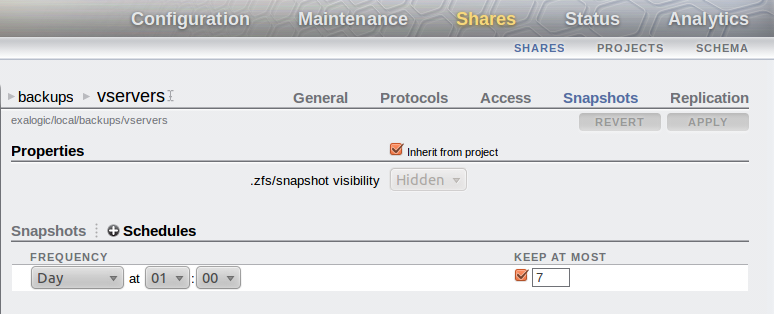
The first activity is to create a project/share to hold the backups of the vServers. Once the filesystem has been created then ensure that you setup the system to automatically create regular snapshots of the share. In the graphic below the share has been setup to snapshot the system daily at 1am and to keep 1 week's worth of snapshots on the storage appliance.


You should also setup replication to push the backups to a remote location for safekeeping. This is a simple activity of setting up a replication target under the Configuration/Services/Remote Replication tab then for the share (or at a project level) define the replication settings.
Make sure the share has root squash enabled. (root access in an NFS exception)

Mount the share on the vServer

It is now possible to mount the share on the vServer. This can be done dynamically at the point in time when the backup is performed or via a permanently mounted share.
It is necessary to mount the share using NFS v3. This is because there are a number of specialist users that will be setup on the vServer with ownership of certain filesystems. (eg. the ldap user) Because NFS v4 has a user based security check then these files may fail to backup successfully so NFS v3 is a better bet.

If using a permanent mount point defined in /etc/fstab then there should be a line similar to that shown below.
...
<IP/Host of storage appliance>:/export/backups/vservers /u02/backups nfs rw,bg,hard,nointr,rsize=131072,wsize=131072,tcp,vers=3 0 0
...

However general advise would be to mount the share specifically for the backup then umount it so that under normal usage of the vServer the backup is not visible to users of the system. This is the mechanism that the linked script uses.

On an Exalogic the initial backup of a simple vServer that has nothing but a deployment of WebLogic took just over 6 minutes for the first backup. Subsequent backups make use of the intelligence built into rsync to only copy changes to the backup version, thus following copies were completed in ~30 seconds. Obviously if there had been a lot of changes to the files then this number would increase towards the original 6 minutes.

vServer configuration for backing up

rsync is a fairly simple command to use, however the setup required to ensure it is configured to copy the correct files to an appropriate remote location is more complex. The basic command to use is shown below with the restore being a reversal of the command.

# rsync -avr --delete --delete-excluded --exclude-from=<List of files to exclude> <Backup from> <backup to>

However to simplify the setup I have created a short script that makes use of the Exalogic ZFS appliance and excludes files appropriate for the Oracle Linux base image. The script I used can be found here and its usage is shown below
donald@esat-df-001 :~/consulting/oracle/exalogic/bin/backup/rsync$ ./rsync_backup-v1.0.sh -help
rsync_otd_backup.sh 
-action=(backup|restore) : [backup]
-nfs_server=<IP of NFS storage device> : [nfs-server]
-nfs_share_dir=<Directory of NFS share> : [/export/backups/vservers]
-mount_point=<Directory of mount point on local machine> : [/mnt/backups]
-backup_dir=<root directory for backups under the mount point> : [esat-df-001]
-directory_to_backup=<Source directory for backing up.> : [/]
-automount
-script

If automount is not specified the system will assume that the mount point defined already exists
-script is used to indicate that the script is run automatically and should not prompt the user
for any input.

Each parameter can be defined from the command line to determine the configuration, however if called automatically (from cron for example) you must include the -script option, otherwise it will prompt for confirmation that the configuration is correct.  The defaults are all setup within the script itself, inside the setup_default_values function at the top, these should be changed to suit your environment.  Similarly the function create_exclusion_list contains a list of files/directories that will not be backedup/restored.  Primarily because these directories are specific to devices attaches, temporary or cache files. The list here is what I have found works using Oracle Linux 5.6 but will need to be reviewed for your environment.
To perform the backup the simplest approach is to setup cron to run the job. I was using a backup run hourly, with the ZFS appliance keeping a copy on a daily basis but the specific needs for backup frequency will vary from environment to environment. An example of the crontab file used is shown below.
[root@esat-df-001 ~]# crontab -l
10 * * * * ./rsync_backup.sh -action=backup -script -nfs_server=172.17.0.17 -nfs_share_dir=/export/backups/vservers -mount_point=/mnt/backups -backup_dir=esat-df-001 -directory_to_backup=/
[root@esat-df-001 ~]#


Restore using rsync

The restore process is approximately a reverse of the backup process however there are various options that make this approach flexible. These being:-
  1. The ability to restore individual files or filesystems to the vServer
  2. A complete restore from backup of vServer
  3. The recreation of a vServer on another host/rack, restoring to the values defined in the backup.
These options can all be fulfilled by the use of rsync with varying degrees of manual intervention or different restore commands.

Recreating a vServer and restoring from backup

Should a vServer become corrupt or deleted (deliberately or accidentally) then it may be necessary to recreate the vServer from a backup. Assuming that the vServer is to have at least its public IP address identical to the previous server then the first activity is to allocate the same IP address to the new vServer that is will be created. This is done by simply allocating the IP address and then during the vServer creation process defining the network to have a static IP address.


Ensure that the vServer you create has a similar disk partitioning structure to the original. Perfectly OK for the partitioning to be done differently but it will be necessary to make changes to the backed up /etc/fstab file to match the new vServer layout and to perform the file system creation and same mount points.
Thus the activities to perform/consider on creation are:-
  1. Ensure the disk size/additional volumes are created as needed.
  2. Allocate IP address for any IPs that are to be recreated in the new vServer. Statically assign them to the vServer during creation.
  3. After first boot
    1. Format and mount volumes/additional disk space as needed.
    2. For all the NFS mounts that were on the previous vServer re-create the mount points. (All defined in the backup copy of /etc/fstab)
    3. Ensure disk partitions/volumes are mounted such that the vServer has similar storage facilities to the original.
  4. Restore from backup.
  5. Edit files to correct for new environment
    1. Edit /etc/hosts to make changes as necessary to any IP addresses appropriate to new vServer/environment
    2. Check the /etc/fstab file to correct according to new partitioning/volumes attached if changed from original
  6. Reboot & test
Point 4 is where the rsync command is run to create a backup, if you are wanting to backup to one of the earlier snapshots then make sure that you use the ZFS appliance to create a new share from one of the snapshots and then use that share to mount the backup and copy the files onto the new vServer.

Backup by Templating an existing vServer (A later blog post....)


Monday, 10 September 2012

Setting up a local Yum Server using the Exalogic ZFS Storage Appliance

One of the Exalogic Racks that I have setup had no access to the internet from the 10GbE network, as such no easy mechanism for additional rpms to be deployed to the vServers that are created.  In order to make things simpler for installation on the multiple vServers and have some degree of control over what versions of the software are installed this note describes how to setup a local yum server.
Within an Exalogic we have a handy HTTP server built into the ZFS storage device which we will use to serve up the content of the YUM Repository. This makes it available to every vServer that is attached to the vServer-shared-storage network.

Setup the Yum Repository

This first activity is to setup the actual repository on the shared repository. A few activities are required to enable this:-

Create a share for the repository

The first step is to create a share on the Exalogic rack that will be used to host the yum repository and make it available via HTTP. Some instructions on setting up a share can be found in the technote "Creating a Project or Share in the ZFS appliance".  In this case this service will be common to all vServers so use the existing project "common" and create a share under it called "yum-repo", making the share available via HTTP.

Having created the share we need to make it available via HTTP. To achieve this firstly enable the HTTP service on the ZFS appliance. This is achieved by clicking the enable icon on the HTTP service inside the Configuration/Services tab. The service shown below.


Having enabled the HTTP service it is then necessary to change the configuration for the share to make the share content available via HTTP. This is achieved by selecting "Shares" then picking the share itself. In our case this is common/yum-repo. Now select the Protocol tab option and set the "Share mode" of the HTTP service to Read Only.  If this is not possible it is probably because it has been set to Inherit from project.  If you are happy to have all shares under the project exposing their content via HTTP then leave the "Inherit from project" option selected and change the HTTP protocol on the project level so that it is set to Read only.  If you only want to expose this share then de-select the "Inherit from project" option and set the share mode to Read only.

Create the Repository

The simplest way to get a hold of the appropriate packages is to download the Exalogic base image. This is the .iso file rather than the virtual image which is a single image file as oppose to an installation CD. From the Exalogic e-delivery website it is possible to download the latest physical image. (At the time of writing this was the 2.0.0.0.0 version.) It ships as two zip files which need to be expanded and the runMe.sh run which will amalgamate the two images to create a single iso file.

Using the single iso file loopback mount the iso and then copy all the content onto the yum-repo share.

So an example process from a compute node to mount the iso and copy the contents off it is shown below.


# mkdir /mnt/yum-repo
# mount <IP address of shared storage>:/export/common/yum-repo /mnt/yum-repo
# cp <Path to base image>/el_x2-2_baseimage_linux_2.0.0.0.0_64.iso /mnt/yum-repo
# mkdir /mnt/yum-repo/tmp
# mount -o loop /mnt/yum-repo/el_x2-2_baseimage_linux_2.0.0.0.0_64.iso /mnt/yum-repo/tmp
# mkdir /mnt/yum-repo/el_x2-2_baseimage_linux_2.0.0.0.0_64
# cp -r /mnt/yum-repo/tmp/* /mnt/yum-repo/el_x2-2_baseimage_linux_2.0.0.0.0_64


Now we want to run the createrepo command to actually create the repository that all the clients can utilise. In order to achieve this the first thing we need to do is actually install the repository package, then run the createrepo command.

# cd /mnt/yum-repo/el_x2-2_baseimage_linux_2.0.0.0.0_64
# find . -name createrepo*
./Server/createrepo-0.4.11-3.el5.noarch.rpm
# rpm -ivh /mnt/yum-repo/el_x2-2_baseimage_linux_2.0.0.0.0_64/Server/createrepo-0.4.11-3.el5.noarch.rpm
warning: /mnt/yum-repo/el_x2-2_baseimage_linux_2.0.0.0.0_64/Server/createrepo-0.4.11-3.el5.noarch.rpm: Header V3 DSA signature: NOKEY, key ID 1e5e0159
Preparing... ########################################### [100%]
1:createrepo ########################################### [100%]
#
# createrepo .
3338/3338 - VT/etherboot-roms-kvm-5.4.4-13.el5.x86_64.rpm 6_64.rpm.rpmpm
Saving Primary metadata
Saving file lists metadata
Saving other metadata
#

Configure the Client & Install the Packages.

Now log onto your vServer to configure the yum repository. This is done by creating the file /etc/yum.repos.d/local_yum.repo, the content of which specifies the HTTP address for the yum repository on the shared storage. Once created you can run yum reposlist to ensure that it is configured correctly.yum

# cat /etc/yum.repos.d/local_yum.repo
[local_yum]
name=Exalogic TVP yum rack
baseurl=http://<IP address of your ZFS Storage appliance on the vServer-shared-storage network (172.17.0.n by default)>/shares/export/common/yum-repo/el_x2-2_baseimage_linux_2.0.0.0.0_64
gpgcheck=0
enabled=1

#
# yum repolist
Loaded plugins: rhnplugin, security
This system is not registered with ULN.
ULN support will be disabled.
local_yum | 951 B 00:00
local_yum/primary | 1.6 MB 00:00
local_yum 3338/3338
repo id repo name status
local_yum Exalogic TVP yum rack enabled: 3,338
repolist: 3,338
[root@esat-ldap ~]#

#

Then run 'yum repolist' and if everything's is ok you see the repository listed.

Friday, 7 September 2012

Creating a project/share on the Oracle ZFS Storage Appliance

To quote from a colleague - a tea break snippet (See The Old Toxophilist) on setting up a project and share using the ZFS Storage Appliance that is part of the Exalogic rack.

If you are doing this through the Browser User Interface (BUI) then the first thing to do is point your browser at the management administration interface for the ZFS Storage appliance on port 215. Connecting to the active storage head.

https://<IP of active storage head>:215/

Log on to the service and navigate to the shares tab then pick the Projects sub-tab.
You can then click on the small + symbol beside the Projects title, as shown below.


Give your project a suitable name, say MyProject. You can now select this project from the Projects page to edit it. This is done by highlighting the MyProject line and clicking the pencil icon to edit it. Now we want to do some basic best practice configuration.
  1. Click on the General tab and specify the "Mountpoint" to be /export/<project name> This will mean that all the data and shares held in this project will be contained within a single directory structure on the storage device. The rest of the General settings can be left at the defaults in the first place.
    eg. /export/myproject  (Minor unix standard to use lower case characters, if you do use mixed, bear in mind it is case sensitive.)
  2. Click onto the Protocol tab.
    1. Set the Share Mode to be None. This stops anyone but the nodes that are specifically defined connecting to the share.
    2. Click on the + symbol beside the "NFS Exceptions" to add an exception. I tend to use the Type of "Network" and define a network/netmask as the Entity to specify which compute nodes/vServers can access the share. In a virtualised Exalogic the default vServer shared storage network is 172.17.0.0/16 so giving these read/write access is the norm. There is also a tick box for "Root Access", this defines what is known as root squash which determines if the root user of a connected client has root access to the files in the share. Unless specifically needed this should not be enabled.
    3. Add additional networks as needed for your environment.
    4. HTTP - if you require access to the shares via an HTTP interface then set the share mode for this protocol to be read only.
    5. Replication - No need for this in a very simple test environment but for all other environements the Replication tab allows you to define backup locations for the share.
  3. Click on the Shares tab
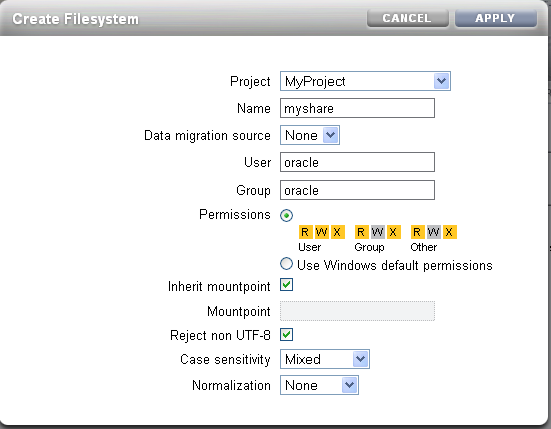
    1. For each share you wish to create click on the + symbol beside the Filesystems, give your share a name. The other options such as the User and Group and permissions are really dependent on what the needs of your environment are. In the example shown below the assumption is that the share myshare will be mountable from /export/myproject/myshare (the default), and once mounted will show up as being owned by oracle:oracle.
      Note :- you may find that the appliance objects to the owner of oracle:oracle as an unknown user and group. If you are just using NFSv3 then you can enter the ID for the oracle user in here which will transfer over to the client server. If using NFSv4 then the user must exist in the shared authentication location - LDAP or NIS.


Now all you need do is mount this share from a compute node (Physical Exalogic) or vServer (virtual Exalogic)
# mount <ip of storage>:/export/myproject/myshare /mnt

or if you want it to be auto-mounted on boot add it to the /etc/fstab file on a directory such as /u01.

Tuesday, 31 July 2012

Limiting User Access with LDAP Authentication to Multiple Servers [part 4 of 4]

This technote is the last in a line of notes about using LDAP to provide a shared authentication facility, using the components of an Exalogic.

Introduction

In the earlier posts in the series
  1. Using LDAP for Shared Authentication.
  2. Securing OpenLDAP Communications
  3. Configuring OpenLDAP for High Availability. (Master/Slave or Provider/Consumer configuration)
we considered how to setup a directory server and configure the ZFS Storage Appliance and OEL instances to use this for authentication.  We then took the next step to secure the communications by encryption and finally changed the LDAP setup so that we can have multiple copies running to make the system tolerant to failures.

As described we have a mechanism of deploying  a shared authentication that can be used by the storage and multiple compute nodes.  This does not cover the use case of enabling a user to log onto some compute nodes but not others.  To achieve this we need to think about adding some selectivity to the authentication.  There are many ways to achieve this, one approach would be to use Access Control Lists and dynamically build up exactly what servers any particular user might have access to - this may be the subject of a future post.  The simplest way that may achieve what we are looking for is to simply use the LDAP tree structure to define what users can be authenticated to a particular host.

A default directory, for authentication purposes, consists of a tree structure something like:-
  • Base DN (dc=example,dc=com)
    • ou=Group
      • cn=adm
      • cn=audio
      • cn=...
      • cn=users
      • cn=<your group>
      • ...
    • ou=Hosts
    • ....
    • ou=People
      • uid=adm
      • uid=avahi
      • ...
      • uid=<your user>
    • ...
In this tree structure the key entries are under ou=Group and ou=People where the users of your system will reside.  The "People" entry holding the users password, home directory, group, user identifier etc.

Reconfiguring the Directory to introduce new branches.

By creating an additional tree structure it is possible to group users and groups together and then set different servers to perform their search under these different structures.

For example, we might have 8 servers in the lower half of an Exalogic half rack being used for one department (sales) and the upper 8 servers by another department (finance)  With this a structure might look like:-
  • Base DN (dc=example,dc=com)
    • ou=Group
      • cn=adm
      • cn=audio
      • ...
    • ou=Hosts
    • ....
    • ou=People
      • uid=adm
      • uid=avahi
      • ...
    • ...
    • ou=departments
      • ou=sales
        • ou=Group
          • cn=sales
        • ou=People
          • uid=salesman01
          • uid=salesman02
          • uid=salesmanager
      • ou=finance
        • ou=Group
          • cn=finance
        • ou=People 
          • uid=accountant01
          • uid=accountant02
          • uid=financedirector

Compute Node configuration

On the client machines the only change we need to make is in the /etc/ldap.conf file, changing the Base DN entry.  So for the lower 8 compute nodes we would have an ldap.conf file that looks like:-

...
host 192.168.23.105

# The distinguished name of the search base.
# base dc=vbel,dc=com
base ou=sales,ou=departments,dc=vbel,dc=com

# Another way to specify your LDAP server is to provide an
# uri with the server name. This allows to use
# Unix Domain Sockets to connect to a local LDAP Server.
#uri ldap://127.0.0.1/
...

where the example base DN for the directory is dc=vbel,dc=com.

For the upper 8 compute nodes make the same change to the ldap.conf file but set the organisational unit to be finance.

...
base ou=finance,ou=departments,dc=vbel,dc=com
...


ZFS Storage Appliance Configuration

Things are slightly more complex on the ZFS storage.  Because this is a shared resource it has to be able to see all the users for all the departments.  In order to configure this there are a couple of settings required on the LDAP service configuration. 


In the example above we need to ensure that the "Base search DN" is set to the base DN of our directory server and that the "Search Scope" is set to subtree (recursive).  This means that the storage will search for users down all the branches from the Base Search DN.

By default the storage appliance will start the search from "ou=People, <Base DN>" in our example we have our departmental users under "ou=departments,<Base DN>" which does not match the default appliance search path.  To fix this we need to "Edit" the "Schema Definition".  Clicking the Edit... link brings up an additon options box to fill in.


In this simple window add the Base DN as the Search Descriptor for both Users and Groups, press save and apply the changes to the LDAP service.


Now check that you can log onto the lower 8 compute nodes as one of the sales users but not as a finance user and vice versa for the upper 8 compute nodes.

Gotcha's and Limitations

This approach is great because it is simple but it is important to understand some of the limitations.  Firstly, make sure that the same user does not exist under different branches this could lead to confusion as the storage might recognise the user under one branch while the compute node picks the user from the other branch.


Thursday, 29 March 2012

Configuring OpenLDAP for High Availability. (Master/Slave or Provider/Consumer configuration) [Part 3 of 4]

This tech-note is the third in a series of 4, it describes the process to go through to setup openLDAP in a consumer/provider (master-slave) configuration. It is done in two steps here, the first step is setting up the two directories to replicate to each other which may be all that is required in some environments. The next step secures the consumer server so that it is accessed via LDAPS and then changes the replication configuration so that the replication is done over the encrypted channel.

Configuration of Consumer/Provider directory topology

Firstly we create an OpenLDAP directory instance on a compute node.  Perform the steps described here to create a directory but stop short of running the migrate_all.pl script.  (We do not need to create the entries in the directory as these will already exist in the master or Provider directory.)

i.e.
  1. Edit the slapd.conf file to enter password details, suffix, directory location etc.
  2. Create the directory location on the filesystem and give it ownership of ldap:ldap
  3. Run updatedb, and locate DB_CONFIG and copy the config file into the directory server location.
  4. On the provider create a user to use to for the replication traffic.  This gives an LDAP user that can be used by the consumer to authenticate to the provider directory.   I created an additional organisation unit (ou=service-users) to hold the users that are not unix OS users. Thus I have an entry as shown in the LDIF below:-

    dn: cn=replication,ou=service-users,dc=oscexa,dc=com
    objectclass: person
    objectclass: top
    cn: replication
    sn: Replication User
    userpassword: {SHA}41vs5sXm4OhspR0EQOkigqnWrIo=
  5. Edit the slapd.conf file to add in all the details that will enable replication.
First change the slapd.conf on the provider putting the following lines at the end of the file (and the serverID up at the point in which the base info is defined.)

...
#######################################################################
# ldbm and/or bdb database definitions
#######################################################################

serverID 001database bdb
suffix "dc=el01,dc=com"
...
...
overlay syncprov
syncprov-checkpoint 100 10
syncprov-sessionlog 100

Where
  • overlay syncprov - Specifies that the overlay syncprov is to be used. (Essentially an overlay is an add-on or plugin to extend openLDAP functionality.  In the recent releases this overlay is compiled into the base openldap service so there is no need to specifically load the module.)
  • syncprov-checkpoint - Defines the number of operations or the number of minutes elapsed since the last checkpoint before checkpointing again. (eg. In our example the system will allow either 100 updates before checkpointing the system or 10 minutes.)
  • syncprov-sessionlog - The number represents the maximum number of session log entries.


Now change the slapd.conf on the consumer, again adding in the lines highlighed in bold.

...
#######################################################################
# ldbm and/or bdb database definitions
#######################################################################

serverID 002database bdb
suffix "dc=el01,dc=com"
...
...
index uidNumber,gidNumber,loginShell eq,pres
index uid,memberUid eq,pres,sub
index nisMapName,nisMapEntry eq,pres,sub

# Replicas of this database
#replogfile /var/lib/ldap/openldap-master-replog
#replica host=ldap-1.example.com:389 starttls=critical
# bindmethod=sasl saslmech=GSSAPI
# authcId=host/ldap-master.example.com@EXAMPLE.COM

syncrepl rid=001 provider=ldap://<The IP/hostname of provider server>:389 type=refreshAndPersist searchbase="dc=oscexa,dc=com" filter="(objectClass=*)" scope=sub attrs="*" bindmethod=simple binddn="cn=replication,ou=service-users,dc=el01,dc=com" credentials=welcome1 tls_cert=/etc/openldap/cacerts/server.pem
mirrormode on updateref ldap://<The IP/hostname of provider server>:389

The changes mentioned above are:-

  • ServerID - Adding a unique ID for each consumer server to add to the environment.
  • syncrepl rid=001 - This parameter and all the sub-parameters define the URL of the provider server to replicate from, what data is to be copied, the credentials of the user to use, how they bind, if LDAPS is to be used the location of the certificate file to use etc.
  • mirrormode - Defines that the server is to be a mirror of the provider and take over as the master should the original provider fail.
  • updateref - As this is a consumer any attempted updates are to be directed back to the provider.

Now restart the directory on the provider and then start the directory on the consumer . Check that the contents have been replicated over to the consumer by performing some queries against it.
Note - I ran into some oddities when setting this up myself in that I had added some additional security to my provider which limited the visibility of entries in the directory.  Ensure that the user you are using to authenticate to the directory with has full visibility of the subtree required for authenticating Unix users.  (In particular the Group and People subtrees.)

Configure Consumer for LDAPS

Setting up a consumer to use LDAPS is the same as described here. In summary:-
  • Create a self signed certificate and private key via the usage of the openssl command line
    • # cd /etc/openldap/cacerts
    • # openssl req -newkey rsa:1024 -x509 -nodes -out cacerts.pem -keyout slave-key.pem -days 3650
  • Edit the slapd.conf file to specify that the server is to start up an SSL listener. Using the cacerts.pem file as the CA certificate file and the slave.pem for encrypting & key.
    • TLSCACertificateFile /etc/openldap/cacerts/cacerts.pem
    • TLSCertificateFile /etc/openldap/cacerts/slave-key.pem
    • TLSCertificateKeyFile /etc/openldap/cacerts/slave-key.pem
  • Edit the /etc/sysconfig/ldap file to specify that the server is to startup the LDAPS listener.
  • Restart the directory.
    • service ldap restart
Test connecting to the directory to ensure that it has started up using the LDAPS self-signed certificate.

Configure Replication to use LDAPS

In this case the consumer will be connecting to the provider server using SSL encryption for the LDAP traffic. This means that the configuration for the replication must be changed to make use of the LDAPS URL and because we are using self-signed certificates we will have to include the public key from the provider server into the cacerts file that the consumer uses so that it will trust the certificate. Thus there are two steps to setting up secure replication:-
  1. Copy the contents of the cacerts file on the provider machine (Everything from -----BEGIN CERTIFICATE....... to END CERTIFICATE -----) and add it to the consumer's TLSCACertificateFile. (Namely the /etc/openldap/cacerts/cacerts.pem file above.)  Thus the Cert Authority (CA) Certificate's file contains the public keys for both the provider and the consumer directories.
  2. Change the slapd.conf file to use the LDAPS protocol for connecting.
Thus the /etc/openldap/cacerts/cacerts.pem file on the consumer will look similar to:-
-----BEGIN CERTIFICATE-----
MIIDjTCCAvagAwIBAgIJALnM0ossPNG7MA0GCSqGSIb3DQEBBQUAMIGMMQswCQYD
VQQGEwJHQjESMBAGA1UECBMJQmVya3NoaXJlMRAwDgYDVQQHEwdOZXdidXJ5MQ8w
DQYDVQQKEwZPcmFjbGUxDTALBgNVBAsTBEVTQVQxETAPBgNVBAMTCHZiZWxjbjAy
MSQwIgYJKoZIhvcNAQkBFhVkb24uZm9yYmVzQG9yYWNsZS5jb20wHhcNMTIwMjI3
MTcwMzI4WhcNMjIwMjI0MTcwMzI4WjCBjDELMAkGA1UEBhMCR0IxEjAQBgNVBAgT
CUJlcmtzaGlyZTEQMA4GA1UEBxMHTmV3YnVyeTEPMA0GA1UEChMGT3JhY2xlMQ0w
CwYDVQQLEwRFU0FUMREwDwYDVQQDEwh2YmVsY24wMjEkMCIGCSqGSIb3DQEJARYV
ZG9uLmZvcmJlc0BvcmFjbGUuY29tMIGfMA0GCSqGSIb3DQEBAQUAA4GNADCBiQKB
gQDAAayDQPmwZR+imG3nKHsx5578pnlupzqINfsujjhWmc0YqVjs4YATgsN/tVpl
iGHWvXMUzIiadeZF0n7/esj5aDgcfS46oUFasPCv99oWUoTDGeFrpPM7J/mfay+F
CnI5mOUuRpKt4dsafq9MIkA+ja3lMPpdBqqANE3H9Fo3mQIDAQABo4H0MIHxMB0G
A1UdDgQWBBTbmP3A7dsaf7R3NxnFz9ra0GuhhjCBwQYDVR0jBIG5MIG2gBTbmP3A
77R3NxnFz9ra0GgV0quhhqGBkqSBjzCBjDELMAkGA1UEBhMCR0IxEjAQBgNVBAgT
CUJlcmtzaGlyZTEQMA4GAds1UEBxMHTmV3YnVyEPMA0GA1UEChMGT3JhY2xlMQ0w
CwYDVQQLEwRFU0FUMREwDwYDVQQDEwh2YmVsY24wMjEkMCIGCSqGSIb3DQEJARYV
ZG9uLmZvcmJlc0BvcmFjbGUuY29tggkAuczSiyw80bswDAYDVR0TBAUwAwEB/zAN
BgkqhkiG9w0BAQUFAAOBgQBF2AOdub20EbRUnzCWik9l7s8Xji5PVSq9dVbNrLBA
7OhkzzzVux2+4ce9GaiAwjSdMVbLJmH0z0O5URvtGA7/sx/F2/QwUBIPhb097ymK
Qh9+CJN+iWkcRHOPvsEjnvLnoytwqeb7MZgSPvm/KmhBB5YumyBe41AZAjWDQtwP
CQ==
-----END CERTIFICATE-----
-----BEGIN CERTIFICATE-----
MIIDjTCCAvagAwIBAgIJAK0aMmYpr7uXMA0GCSqGSIb3DQEBBQUAMIGMMQswCQYD
VQQGEwJHQjESMBAGA1UECBMJQmVya3NoaXJlMRAwDgYDVQQHEwdOZXdidXJ5MQ8w
DQYDVQQKEwZPcmFjbGUxDTALBgNVBAsTBEVTQVQxETAPBgNVBAMTCHZiZWxjbjAx
MSQwIgYJKoZIhvcNAQkBFhVkb24uZm9yYmVzQG9yYWNsZS5jb20wHhcNMTIwMzI5
MTU1MzMxWhcNMjIwMzI3MTU1MzMxWjCBjDELMAkGA1UEBhMCR0IxEjAQBgNVBAgT
CUJlcmtzaGlyZTEQMA4GA1UEBxMHTmV3YnVyeTEPMA0GA1UEChMGT3JhY2xlMQ0w
CwYDVQQLEwRFU0FUMREwDwYDVQQDEwh2YmVsY24wMTEkMCIGCSqGSIb3DQEJARYV
ZG9uLmZvcmJlc0BvcmFjbGUuY29tMIGfMA0GCSqGSIb3DQEBAQUAA4GNADCBiQKB
gQCxKekSkIPiw7IDMzGYzC6aiDhC9rJIlJizziig4W+OgrpUqLpDaK2xmoSewD/V
RxCc8yjzPElI7YOcnb69M7rVfhPs8IEXl2YkW4qfy76FdiOwNcbRsoPk3WT9h69k
du8DgSddRvk537XhejCg0vpR/Lfj0U6tsuudVxIY+yWclwIDAQABo4H0MIHxMB0G
A1UdDgQWBBR8PO0bvXCJlARZbMHLu289yFzqCjCBwQYDVR0jBIG5MIG2gBR8PO0b
vXCJlARZbMHLu289yFzqCqGBkqSBjzCBjDELMAkGA1UEBhMCR0IxEjAQBgNVBAgT
CUJlcmtzaGlyZTEQMA4GAwDwYDVQQDEwh2YsY24wMTEkMCIGCSqGSIb3DQEJARYV
ZG9uLmZvcmJlc0BvcmFjbGUuY29tggkArRoyZimvu5cwDAYDVR0TBAUwAwEB/zAN
BgkqhkiG9w0BAQUFAAOBgQA+KrjdrkERBL4OaPib8BtEnLRMKCsgtKin0hbOJd+w
GJIr9BQNhYXB6qib2RWZBn9tF/7WfqLHavhaPgD3qo3d01TOWs2A09TaeX7FBk+g
Y4UU7QP9UarkZLSdEPfPuMmniCr8mrqRph/fH/qVVecU1U4mIVekQzanqd1vHii8
xg==
-----END CERTIFICATE-----
And the slapd.conf will have a section that looks similar to:-

...
# bindmethod=sasl saslmech=GSSAPI
# authcId=host/ldap-master.example.com@EXAMPLE.COM
syncrepl rid=001
provider=ldaps://<Hostname of provider LDAP server>:636
type=refreshAndPersist
searchbase="dc=el01,dc=com"
filter="(objectClass=*)"
...

In the same manner the update URL is switched to use the LDAPS URL as well.

Now edit the file /etc/sysconfig/ldap on both the provider and consumer servers and set them to only start up the LDAPS listener. The contents of the file looking like:-

# Parameters to ulimit called right before starting slapd
# - use this to change system limits for slapd
ULIMIT_SETTINGS=

# How long to wait between sending slapd TERM and KILL
# signals when stopping slapd by init script
# - format is the same as used when calling sleep
STOP_DELAY=3s

# By default only listening on ldap:/// is turned on.
# If you want to change listening options for slapd,
# set following three variables to yes or no
SLAPD_LDAP=no
SLAPD_LDAPS=yes
SLAPD_LDAPI=no

And now restart the directory services on both instances and test to ensure you can only access the services on the secure port (636) and that replication is working as you would expect.

# service ldap restart